The purpose of this article is to document the findings from my investigation into Instagram flagging a carousel I posted on 31 August 2026, titled “Convincing you to read these SFF indie books”, as containing AI content.
Background
On the morning of 31 August 2026, some time between 9:00–9:15 AEST based on file date/time stamps, I finished putting together a series of promotional graphics for the Narratess Indie August 2026 sale using Canva:
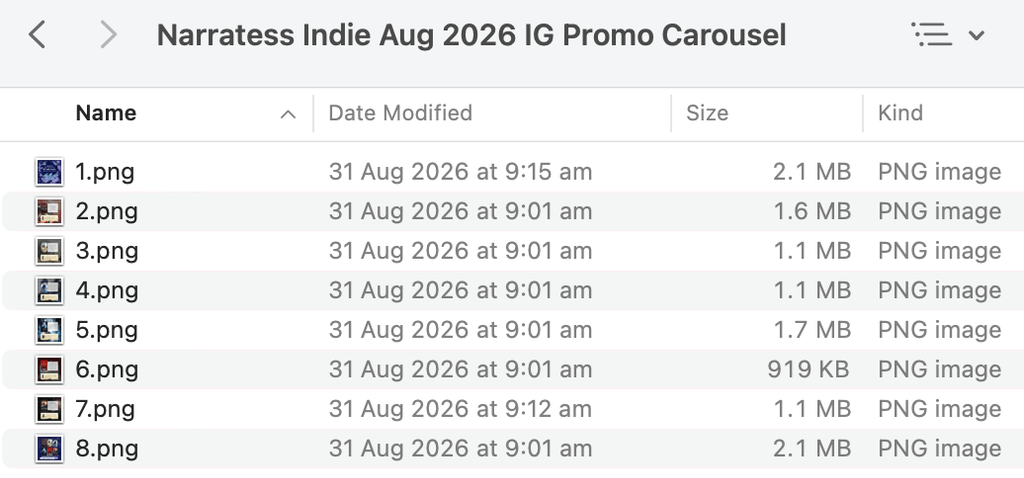
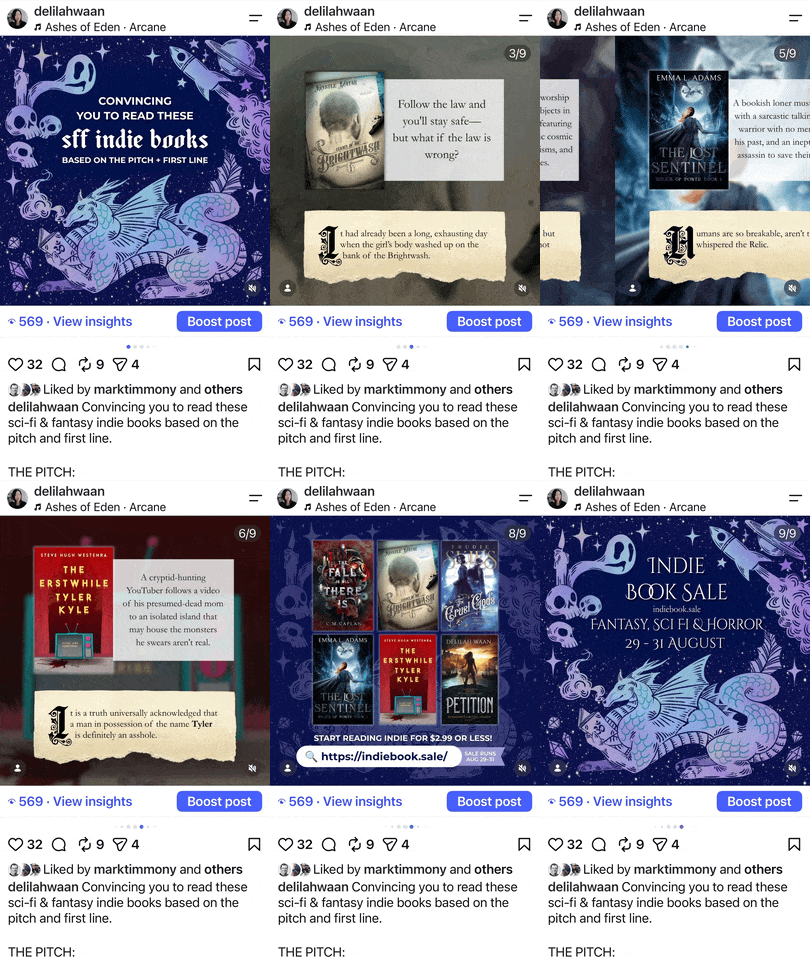
The graphics were posted to my Instagram and Bluesky shortly thereafter, once the associated captions and alt text were finalized.
URL of the original Instagram carousel post:
https://www.instagram.com/p/DcruHHiEjUf/Screen recording archive of the carousel post:
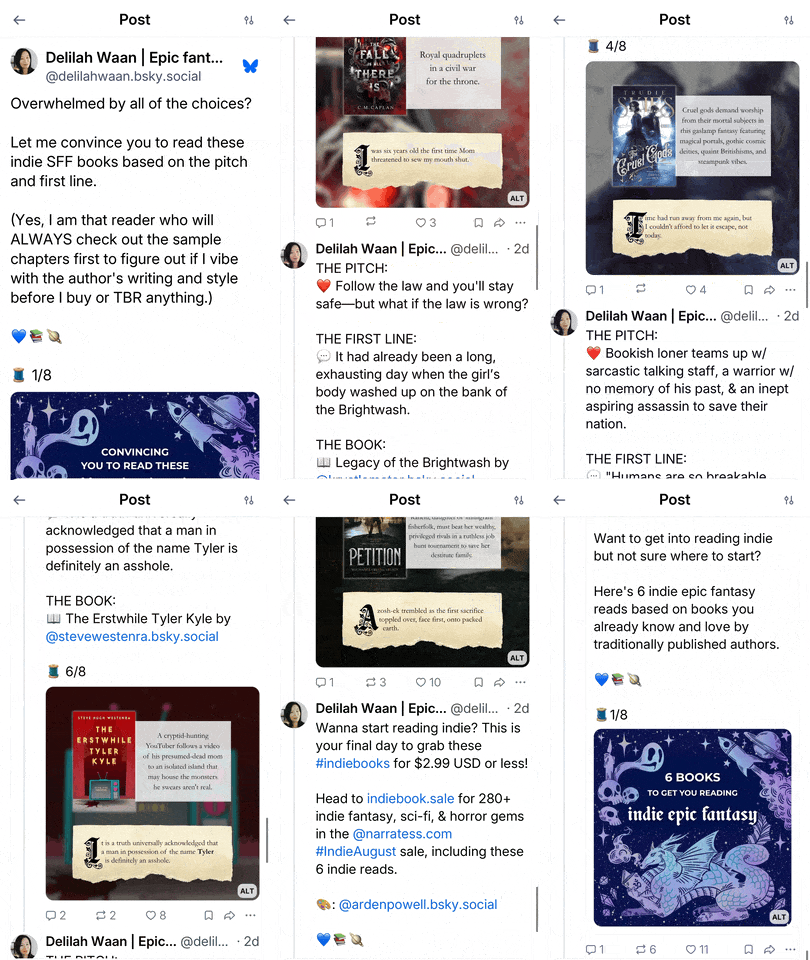
URL of the original Bluesky thread:
https://bsky.app/profile/delilahwaan.bsky.social/post/3mudmtyouzs2dScreen recording archive of the Bluesky thread:
Carousel post flagged as “AI content”
Instagram requires creators declare whether their posts contain “certain realistic content” as AI content via a toggle during the posting process:
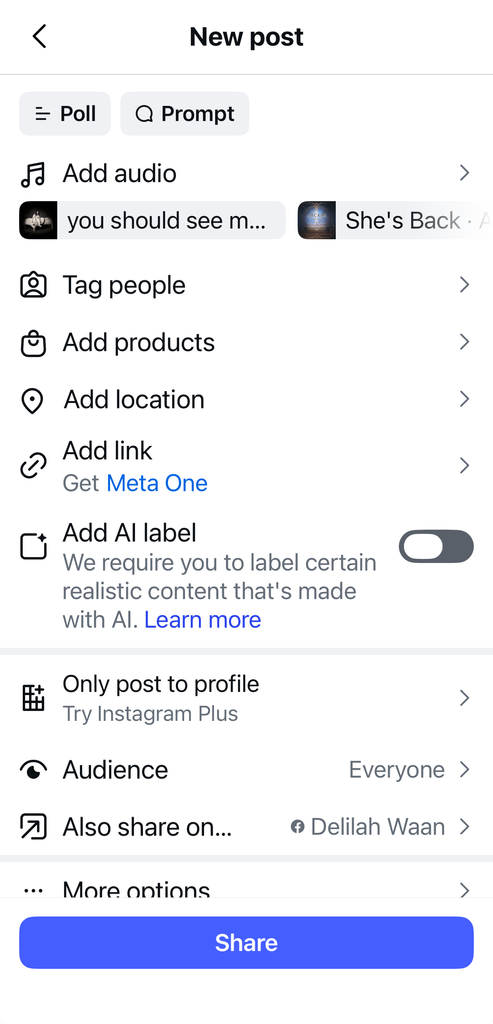
This is a self-reported disclosure and the Instagram app does not notify you prior to posting if the content you’re uploading has also been flagged as containing AI content by their system.
As shown in the archived screen recordings in the previous section, the “AI content” flag on a post is not visible when you are logged into the account the content was posted to; it is only visible when viewing the post from a different account:
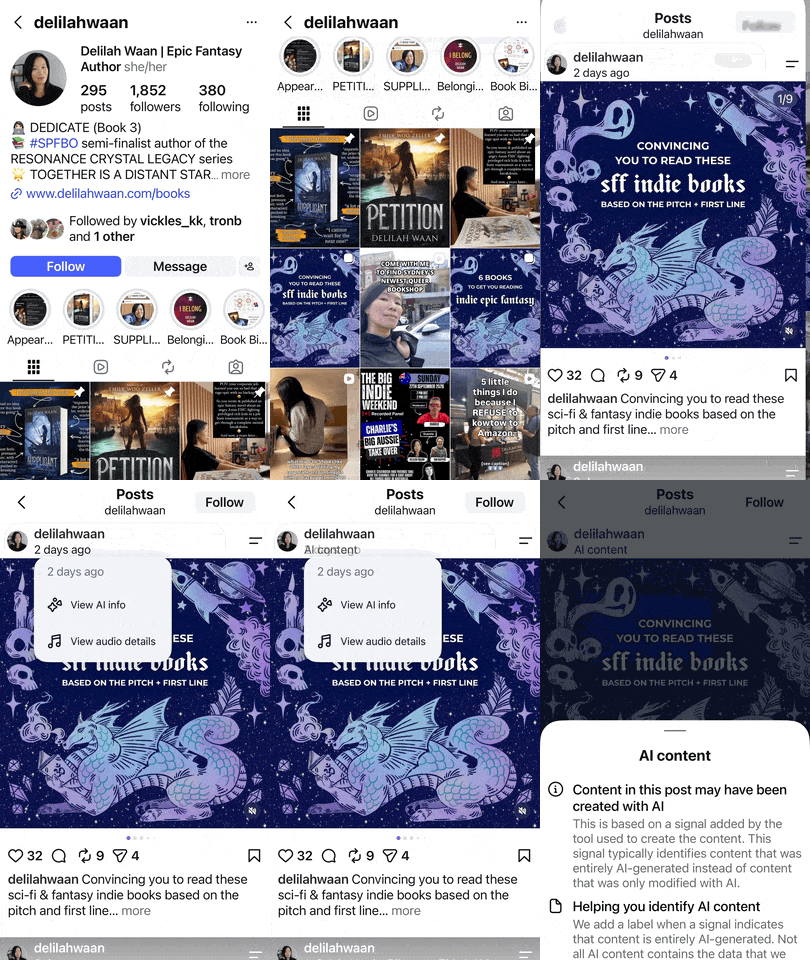
On 2 September 2026, at 6:11 AM AEST, I received the following screenshot via DM notifying me that Instagram had flagged the carousel as containing AI content:
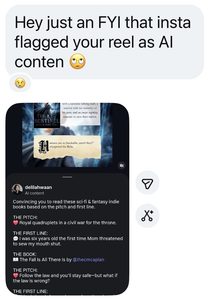
At approximately 7:00 AM AEST, I saw the DM and the screenshot it contained.
I immediately began investigating whether Instagram had correctly flagged the use of generative AI in my post and, if so, determine the necessary corrective steps to rectify the situation.
Methodology
As laid out in my AI statement:
I use Canva, Photopea, and GIMP to create promotional graphics for my website, social media, and author newsletter.
…
Both Canva and Photopea have integrated generative AI into its service; I do not use these functions to create promotional graphics. I generally use my own cover art and photography and/or screenshots as much as possible, though I do also make use of stock images, text elements, and/or filters in Canva.
While I do my best to avoid the use of generative AI images in my promotional graphics, I cannot guarantee that my promotional graphics are free of AI for the following reasons:
Canva sources its stock imagery from Pexels and Pixabay. Pexels allows anyone to contribute to their repositories and does not appear to require labeling. Pixabay allows the uploading of content created with generative AI technologies with labeling, however the onus is on the uploader to ensure the labeling is accurate and complete. While I check the source of any graphics I use in Canva (and I generally endeavor to use images with an upload date prior to 2022), I may inadvertently use something that has been created using generative AI due to inaccurate labeling by the original uploader.
I may also, from time to time, participate in promotions organized by other authors and members of the self-published fantasy community which will require the use of promotional graphics that may be partially or wholly created using generative AI without my knowledge or the knowledge of the organizer.
I used Canva to create the 31 August 2026 promotional graphics.
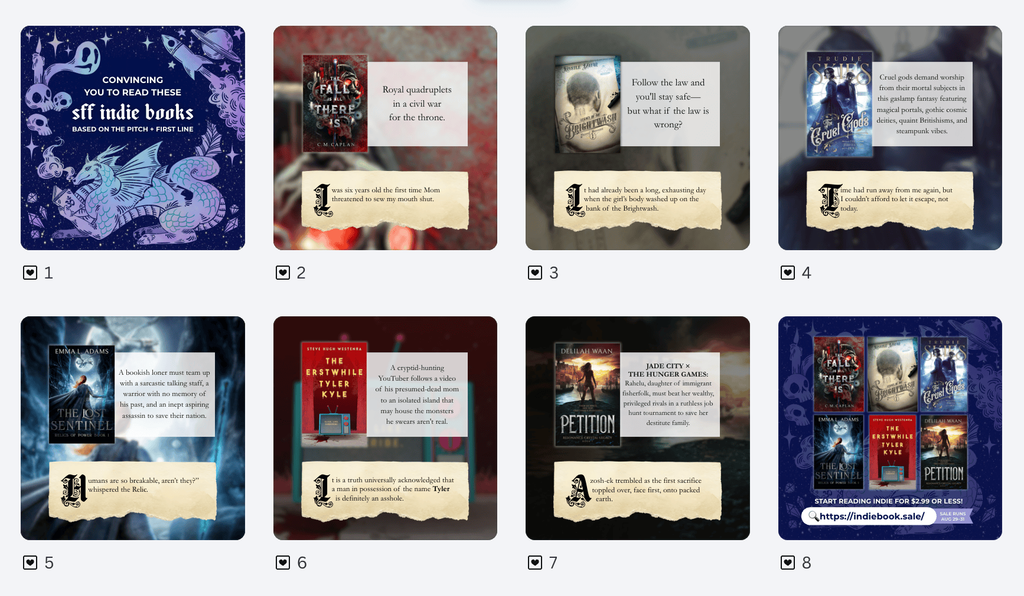
My process for creating the promotional graphics
Cover image (slide #1)
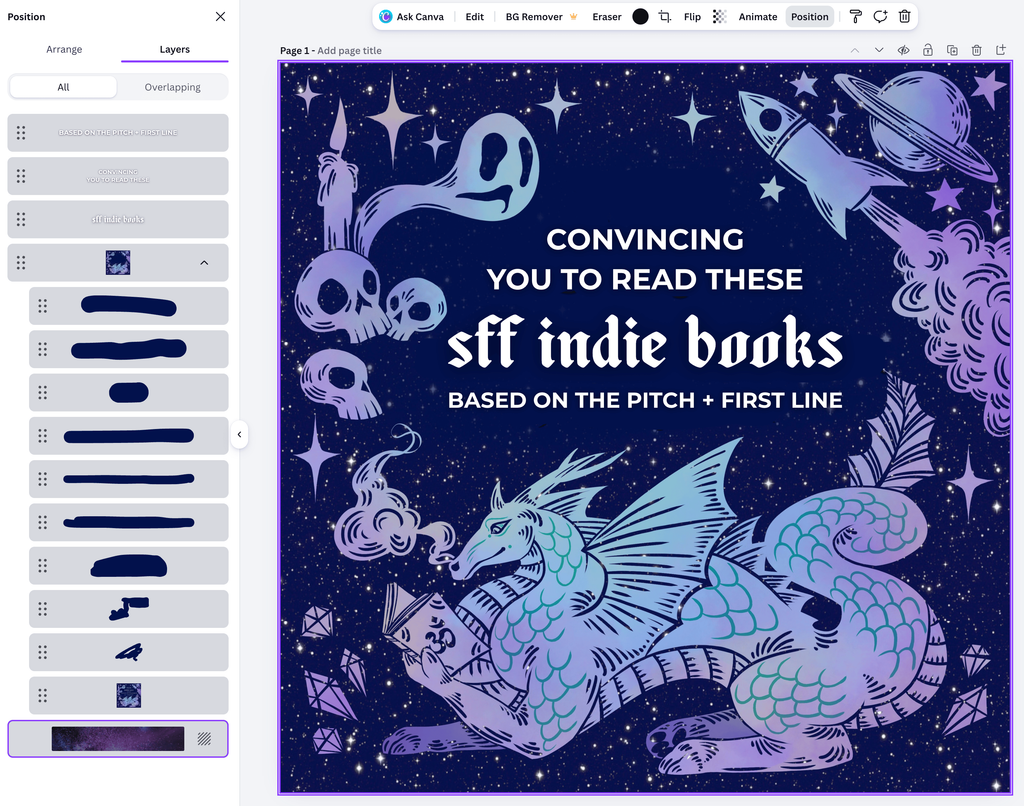
- Used eyedropper selection tool on the Narratess media kit graphic to manually paint over the existing text on the provided graphic
- In the newly blank space, added the text “convincing you to read these sff indie books based on the pitch + first line” using the Monserrat and Black Kiyand typefaces, two free fonts licensed for use via the Canva Free plan.
- A stock image of a sky filled with purple stars is used as the background layer, sourced through Canva’s stock Element library using the search term “purple stars”. It’s not ultimately visible but remains part of the design as it was the first element I started with, so I am including it here for completeness.
Compilation graphic (slide #8)
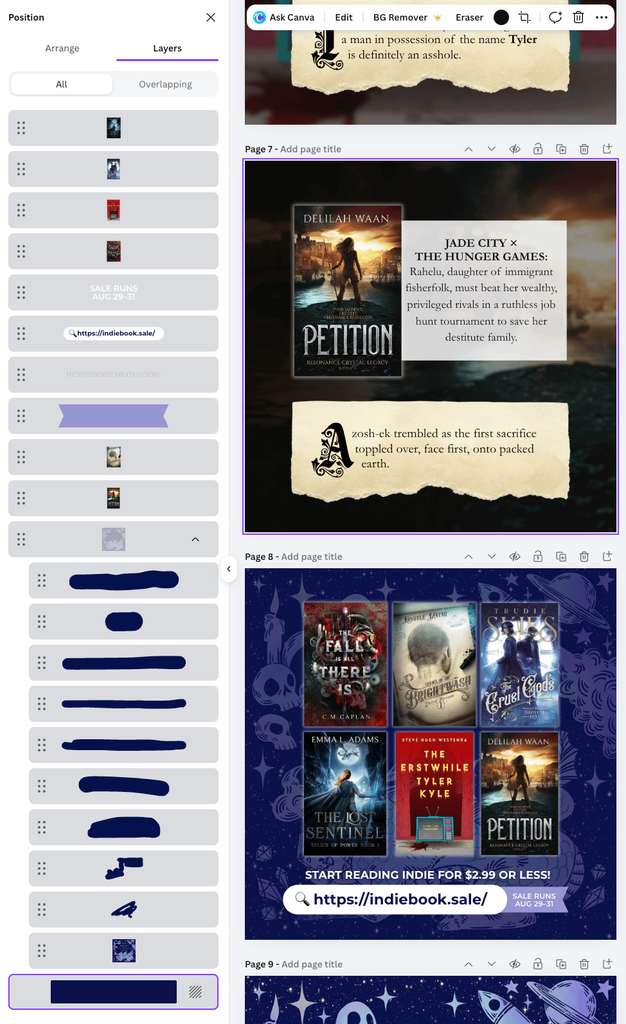
- Copy/pasted the painted over Narratess graphic from the cover graphic to use as the background.
- Copy/pasted the individual book covers from slides 2 through 7 and arranged them in two rows of three.
- Changed background color of the canvas to blue and reduced the opacity of the Narratess graphic.
- Manually added text using the Add Text tool.
- For the sale page URL, inserted the magnifying glass emoji at the beginning of the text and set the background of the text object to white and increased the corner radius to create the browser bar effect.
- Manually added the purple banner as a text background element after the browser bar by drawing it with the Add Shape tool.
Book cover and quote images
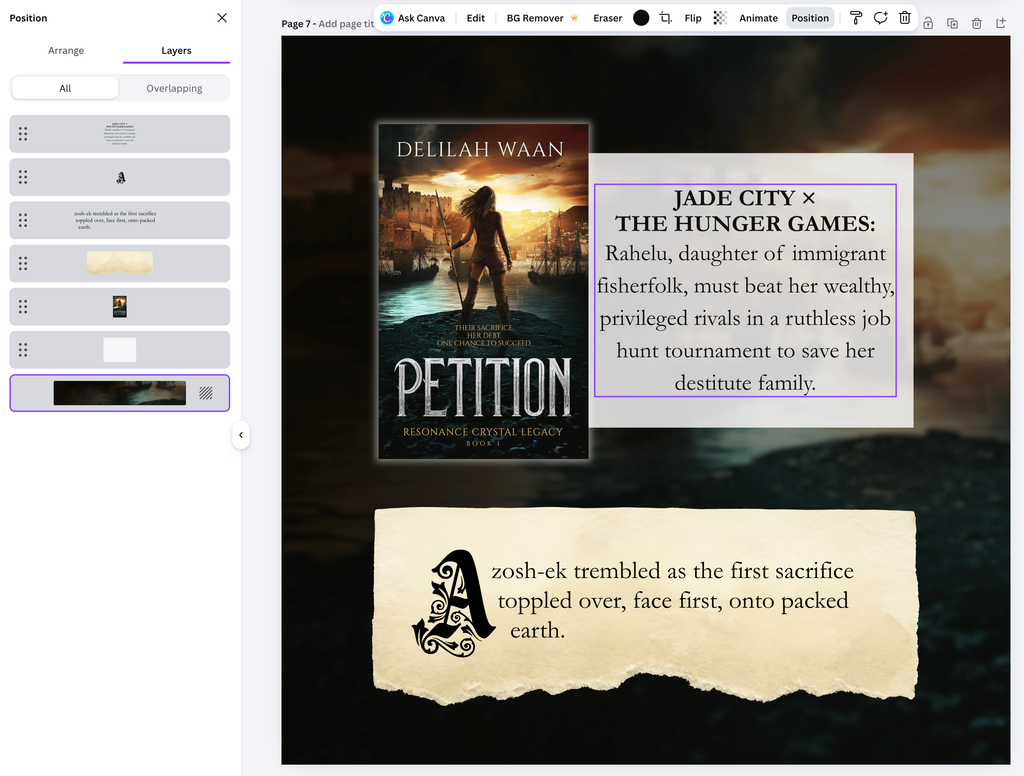
- Used a blurred and enlarged cropped section of the book cover image as the background image for the graphic. The enlarging and cropping is done manually, with a blurred effect manually applied.
- To ensure legibility, the background canvas is set to black and the opacity of the background image is reduced, to around 30-50%, depending on the image.
- Manually added a rectangle object in light grey as a text background element, then manually typed in each book’s 1-line pitch as provided by the author.
- Manually added a clipart graphic sourced by searching “torn paper” in the Canva stock Elements library as a background element for the quote text.
- Manually added the quote text then created the drop cap effect by using the Add Text tool.
Assessing each element for possible use of AI
| Element | Source | Use of AI? |
|---|---|---|
| Narratess Indie August 2026 sale graphic | Narratess media kit. | No. The organizers of the Narratess sale have a strong “no AI” stance and the banner image is credited to human author and artist, Arden Powell. |
| Various book covers | Goodreads, which pulls from the Amazon product pages. Covers are directly uploaded to Amazon KDP by each individual author. | No. The books I chose to include in the promotional post are all by authors who hold similar stances on AI and thus do not use generative AI in their book covers. |
| Stock photo of a sky with purple stars | “Picture of a Galaxy” by Lennard Schubert from Pexels, sourced via Canva’s stock library | No. Clicking the “More info” button on the original Pexels page shows camera metadata (model, focal length, aperture, ISO, shutter speed, date taken). The photo was taken in August 2021, prior to general availability of generative AI imagery. |
| Stock clipart of torn parchment | “Warm Ivory Torn Paper Edge Watercolour”, sourced via Canva’s stock library | Yes. This stock asset is credited to “Canva AI Elements Lab” and is made with generative AI. |
Findings and conclusion
As the book graphics (slides 2 through 7) contain a generative AI image element in the form of the torn parchment stock clipart, Instagram correctly flagged the carousel post as containing AI content.
How the failure occurred
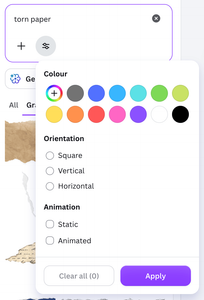
Canva’s search interface for their Elements library has a filter function, but “Hide AI content” is not an available filter option:
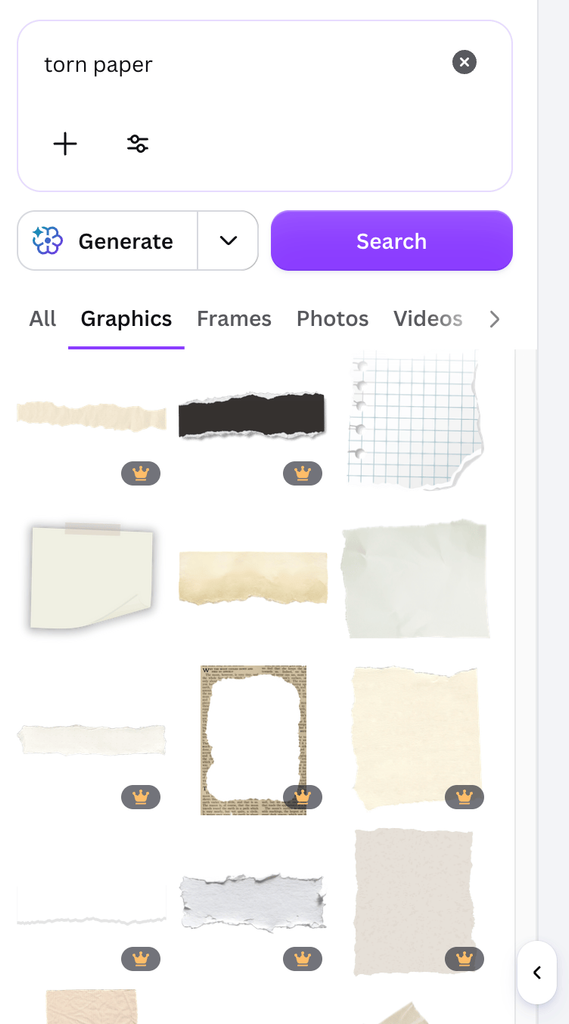
Canva’s interface also does not clearly label AI-generated and non-AI generated assets in the search results, though free versus paid assets are clearly distinguished by the presence of a crown icon in the thumbnail corner:
Each asset in Canva’s Elements library has a dedicated information page, which is hidden behind a menu that only appears on mouseover (in the browser on desktop):
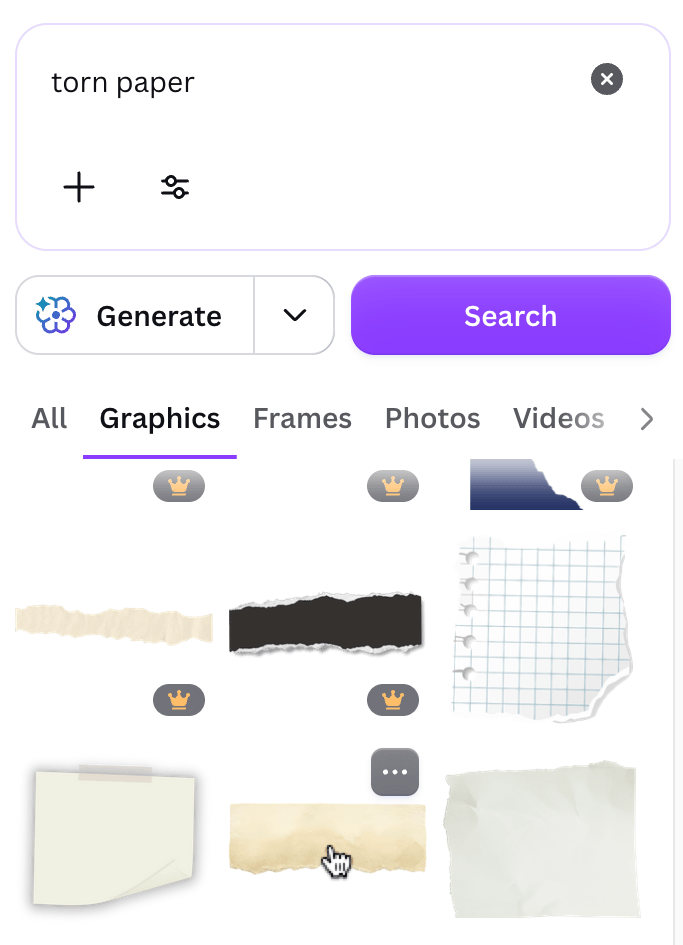
As of the current writing of this article, accessing the dedicated information page is a multi-step process:
- Clicking the ··· button in the top right corner of each asset’s thumbnail, which will bring up a popup menu showing the title of the asset and the name of its source.
- To get to the dedicated information page, you need to also click on the bolded name (in this case, “Warm Ivory Torn Paper Edge …”), which will open it in a new browser tab:
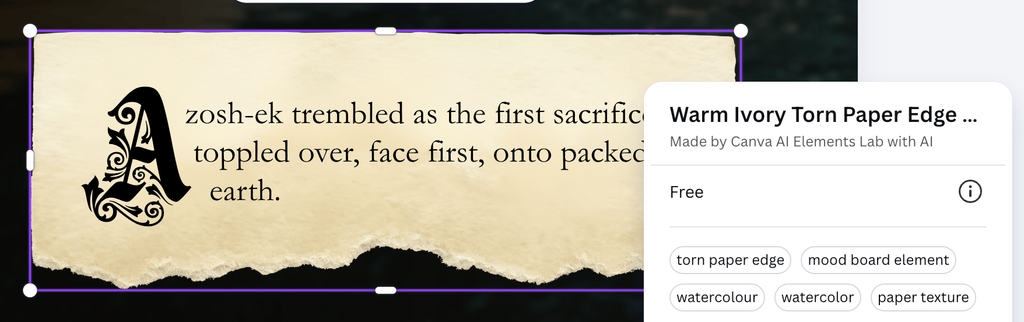
Note: Canva makes minute changes its user interface constantly, so this method may not always be reliable or accurate. Sometimes the bolded title is not linked. Sometimes you have to scroll all the way down to the bottom of the popup menu dialogue and click an additional “Info” menu item to be taken to the detailed information page.
When searching and selecting stock assets for use in a promotional graphic, my standard practice is to vet each option for possible generative AI use by finding the detailed information page.
I did so for the stock photo image of the purple stars, but I failed to do the same for the torn paper clipart, as I mistakenly thought it was an AI-free graphic that I had previously used (and therefore had already vetted) before.
Had I clicked on the menu, I would have seen the credit “Made by Canva AI Elements Lab with AI” immediately, and would not have used it.
Rectification
After documenting my investigation and findings, I deleted my Instagram and Bluesky posts.
I have also reached out to the authors I featured and tagged in those posts with a personal apology, and will make up for it by reposting AI-free versions.
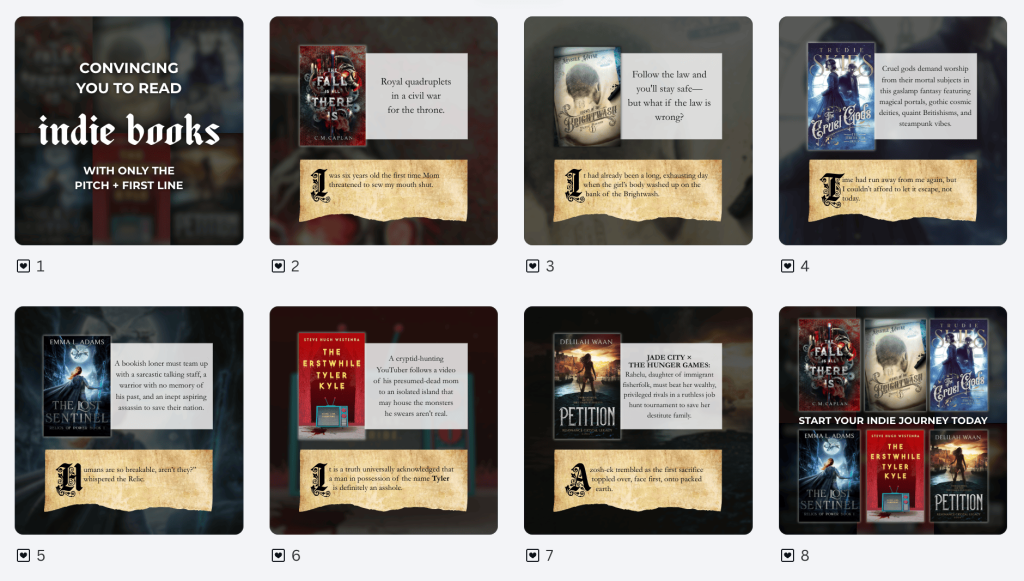
I have since re-edited this set of promotional graphics in Canva to remove the gen AI torn paper clipart:
- In its place, I have used a background texture by panchoow_14 (sourced from Pixabay, via the Canva Elements library, with an original upload date of October 2017) placed inside a “torn illustration” photo frame element (an asset that existed in the Canva Elements library before generative AI).
- As the Narratess Indie August 2026 sale has now concluded, I have also removed the Narratess banner art. The background of the cover graphic and the compilation graphic now consists of the book covers themselves, with a blur effect applied and opacity reduced to allow the plain black background color to show through:
Finally, my AI statement has been updated to include a link to this article. Following the publication of this article, I will also link it in my Instagram Stories and to Bluesky, with a more comprehensive IG carousel post to follow later this month.
Preventing future reoccurrences
In addition to signposting a physical reminder to always check the detailed information panel for any graphics sourced via Canva’s Elements library, I will be doing the following:
- Creating an “AI-free Stock Assets” folder within my Canva workspace and added images that I have already successfully vetted to that folder, instead of relying on my memory.
- Reducing my reliance on Canva’s Elements library by directly sourcing my own assets—either from stock asset platforms with better labelling and filtering functions or by relying on my own photos and illustrations.
Acknowledgements
Massive thanks to Jessica A. McMinn for taking the time and care to bring this to my attention so I could address the problem and make things right as quickly as possible.

Leave a Reply